How to Use CapVerse
Transform your long-form videos into viral short clips with AI-powered editing.
Getting Started
Create your first viral clip
Upload Video
Import from YouTube or upload
Dashboard
Manage your videos and clips
Working with Clips
Edit, trim, and customize
Caption Styling
Brand your content
Publishing
Schedule and publish clips
Calendar
Plan your content
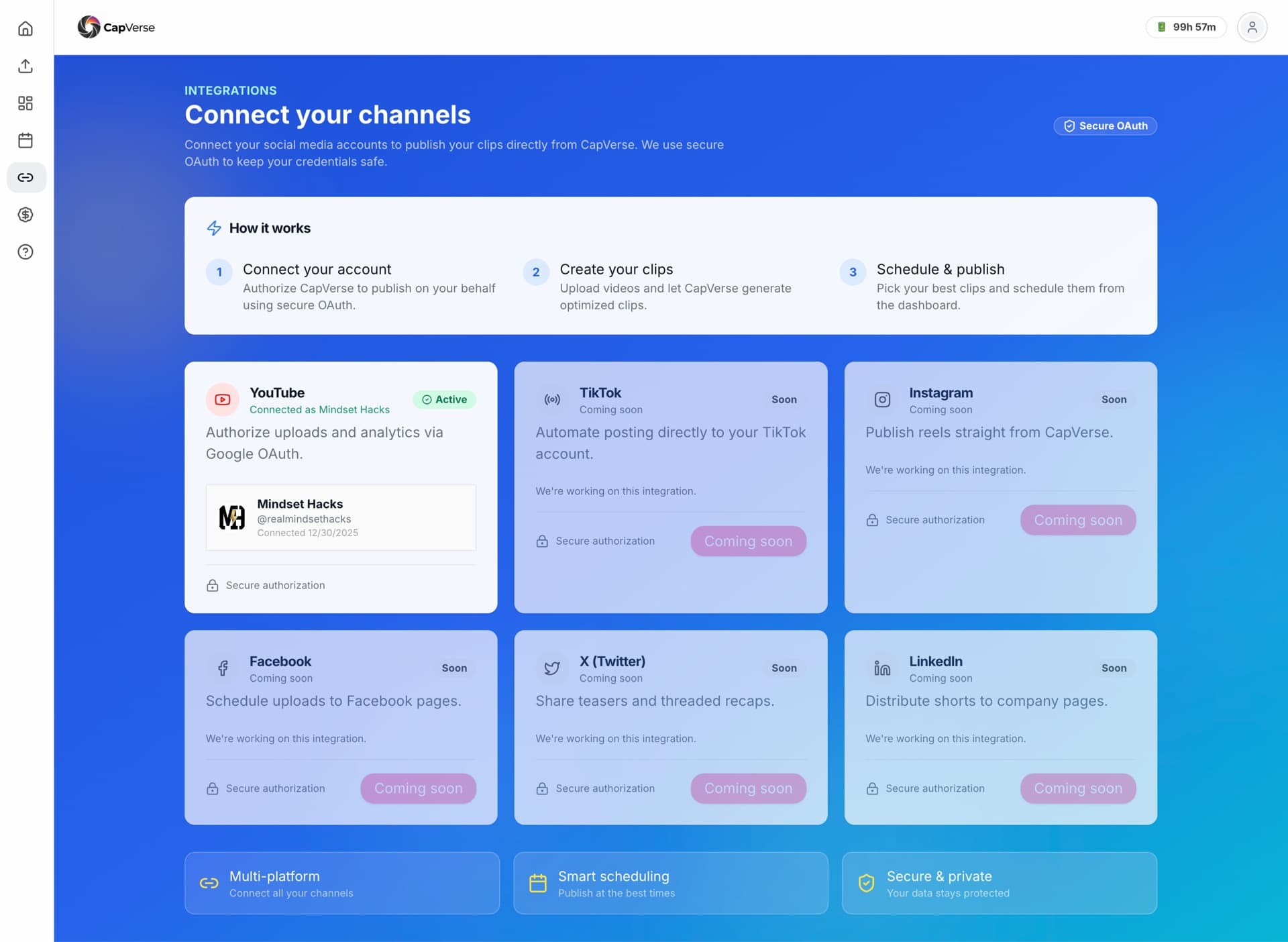
Integrations
Connect social accounts
Getting Started
Create your first viral clip in minutes
Quick Start in 3 Steps
Paste a YouTube URL
Go to the Upload page and paste any YouTube video link. We'll download and analyze it automatically.
Wait for AI Processing
Our AI finds the most engaging moments, generates captions, and creates multiple clip variations.
Review & Publish
Browse your clips, customize styling, and publish directly to YouTube, TikTok, or download.
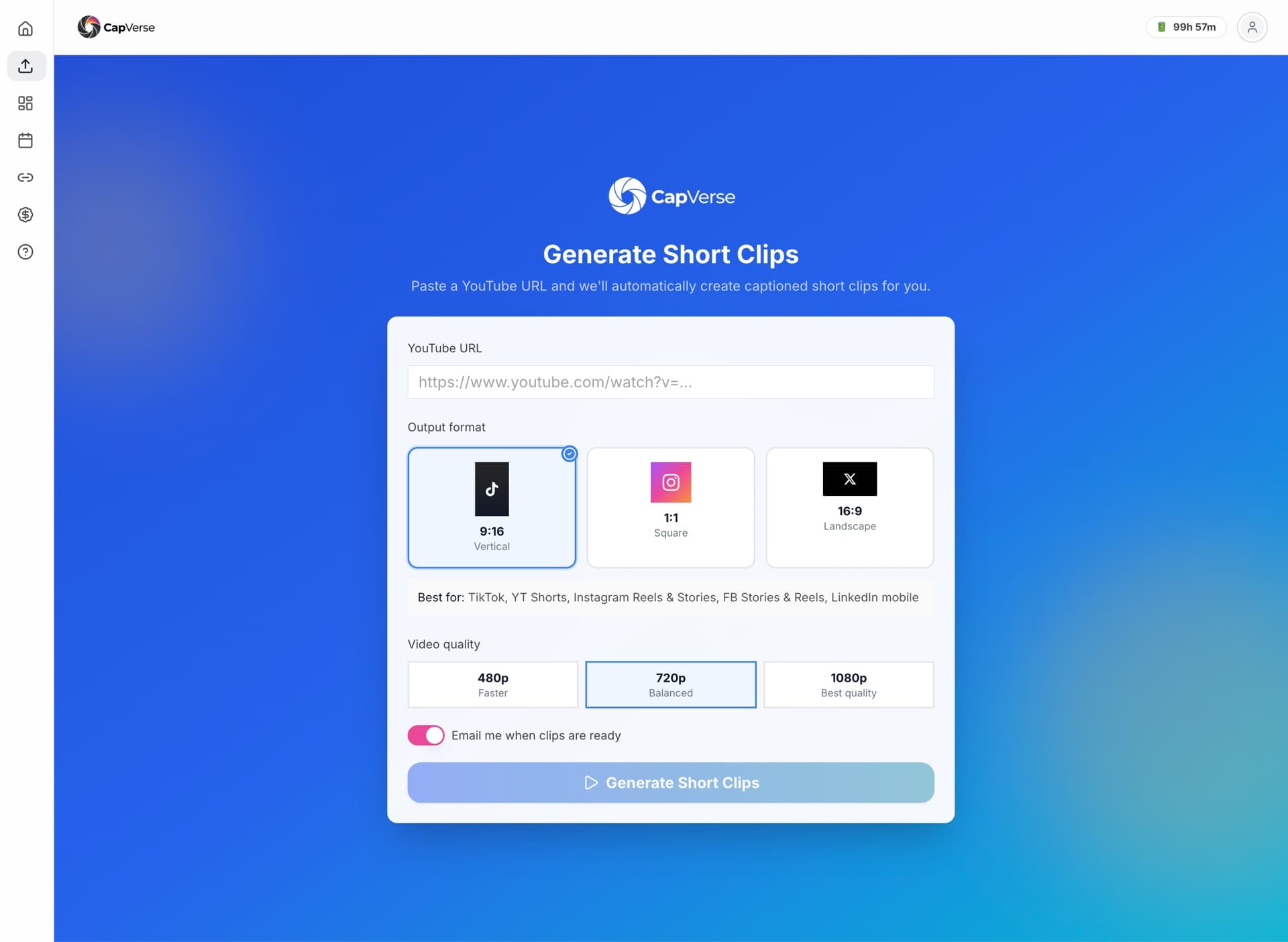
Upload Video
Import your content to generate clips
YouTube URL Import
The fastest way to get started
- Copy the YouTube video URL from your browser
- Paste it in the YouTube URL field on the Upload page
- Select your preferred output format and quality
- Click “Generate Short Clips”
Output Options
Customize your clip format
Output Format
9:16 Vertical (TikTok/Reels), 1:1 Square (Instagram), or 16:9 Landscape (YouTube)
Video Quality
480p (faster processing), 720p (balanced), or 1080p (best quality)
Email Notification
Get notified when your clips are ready for review
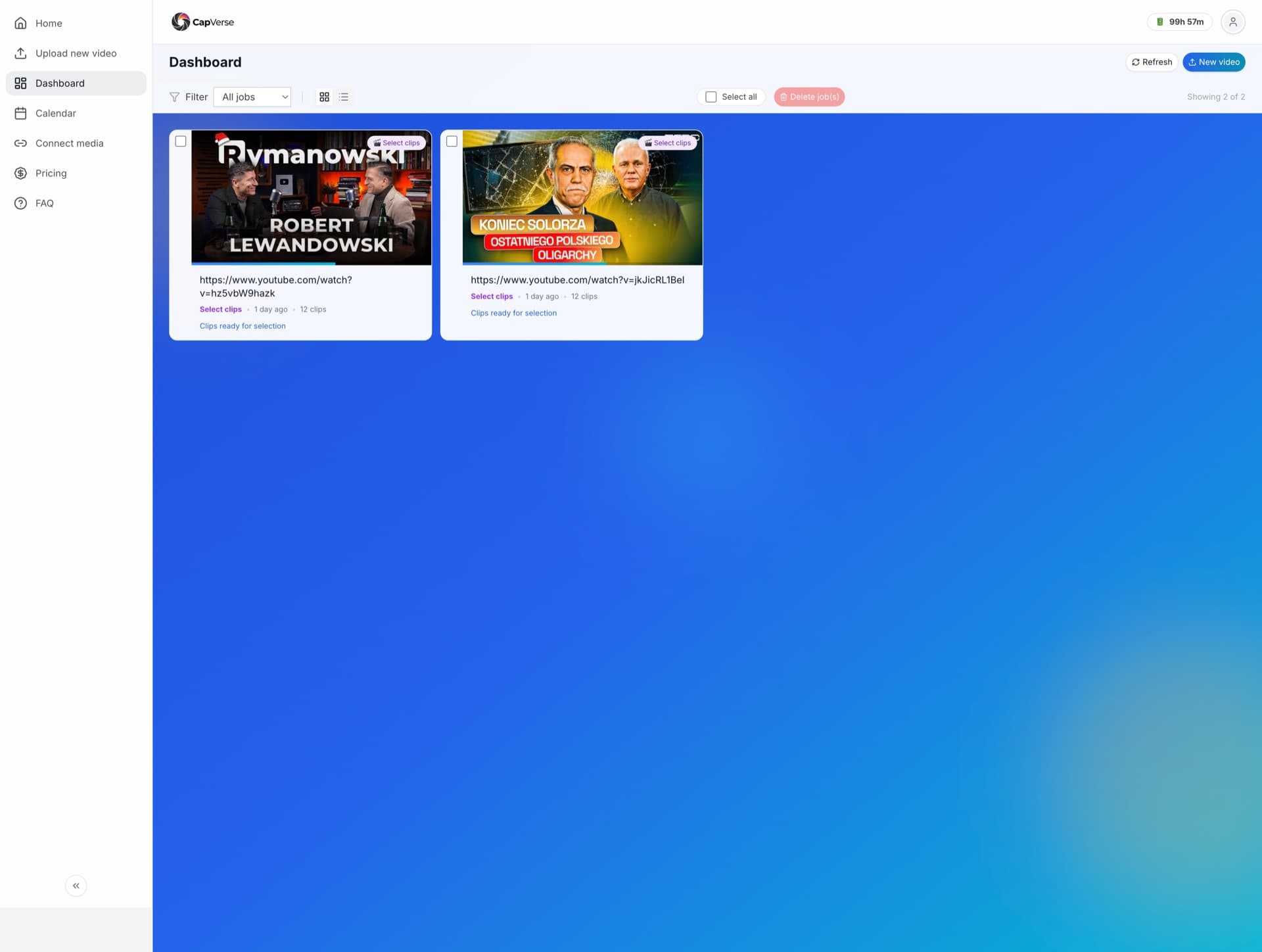
Dashboard
Manage all your videos and clips
Dashboard Features
Video Cards
See all your processed videos with thumbnails, status, and clip counts at a glance.
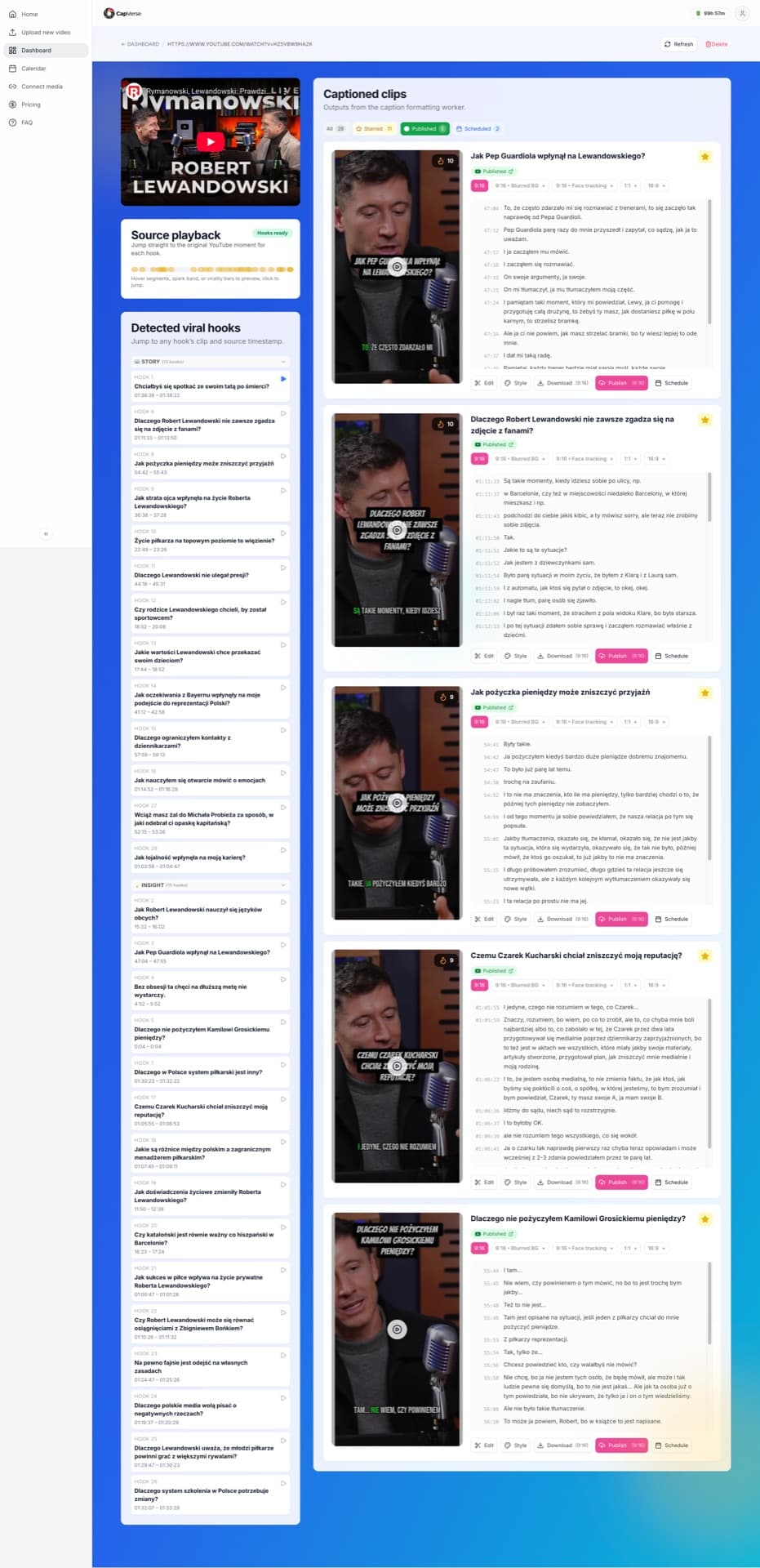
Virality Score
Each clip shows a virality score (1-10) based on AI analysis of engagement potential.
Detected Viral Hooks
View AI-detected hooks with timestamps. Click to jump directly to that moment.
Quick Actions
Edit, style, download, publish, or schedule each clip with one click.
Working with Clips
Edit, trim, and perfect your content
Trim Clip Editor
Fine-tune your clip boundaries
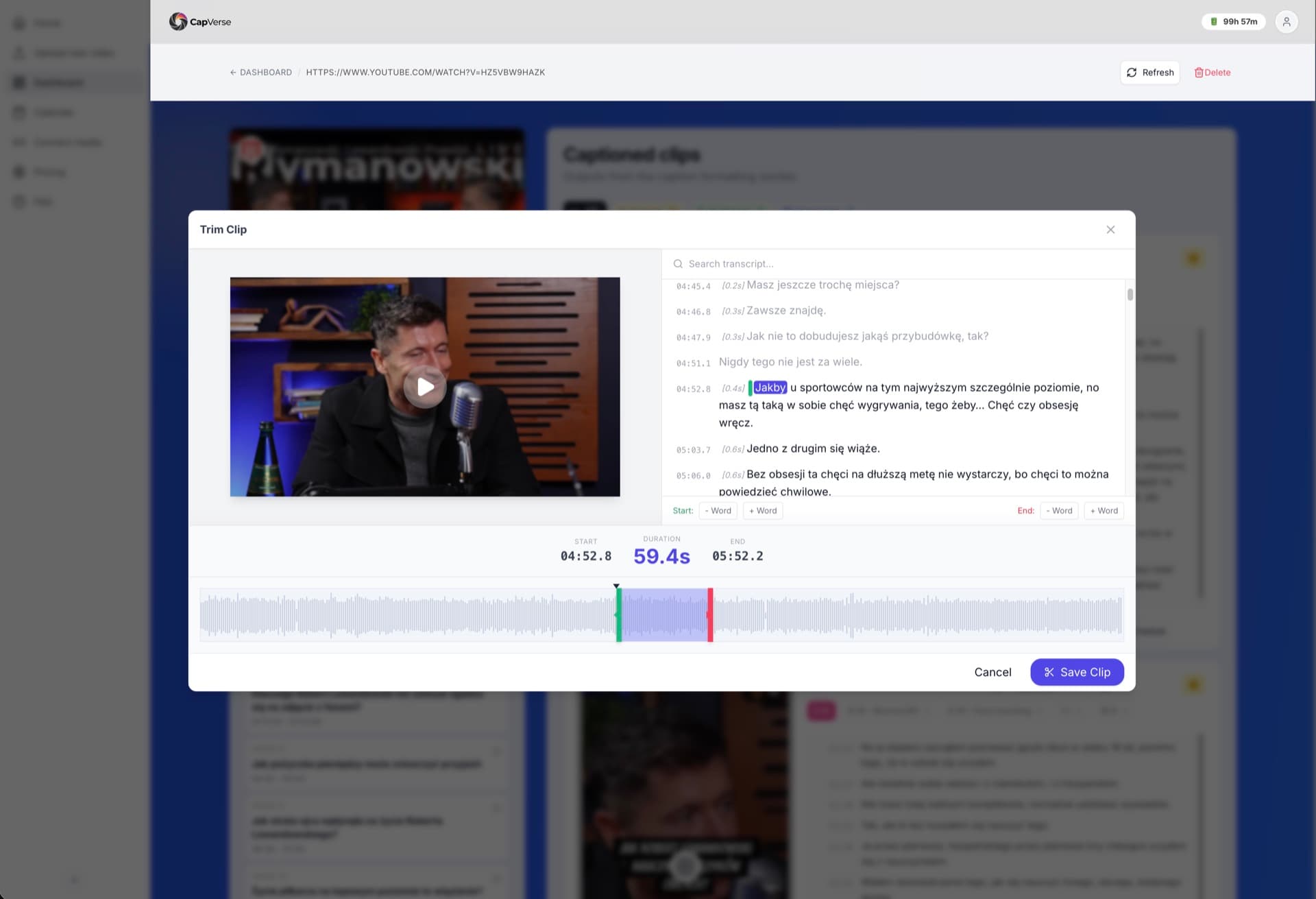
The Trim Clip editor lets you adjust exactly where your clip starts and ends:
- Video Preview: Watch the clip while editing
- Transcript View: See the full transcript with timestamps
- Audio Waveform: Visual timeline for precise editing
- Word-level Control: Use +Word/-Word buttons for precision
Clip Card Actions
Quick actions for every clip
Caption Styling
Make your clips stand out with branded captions
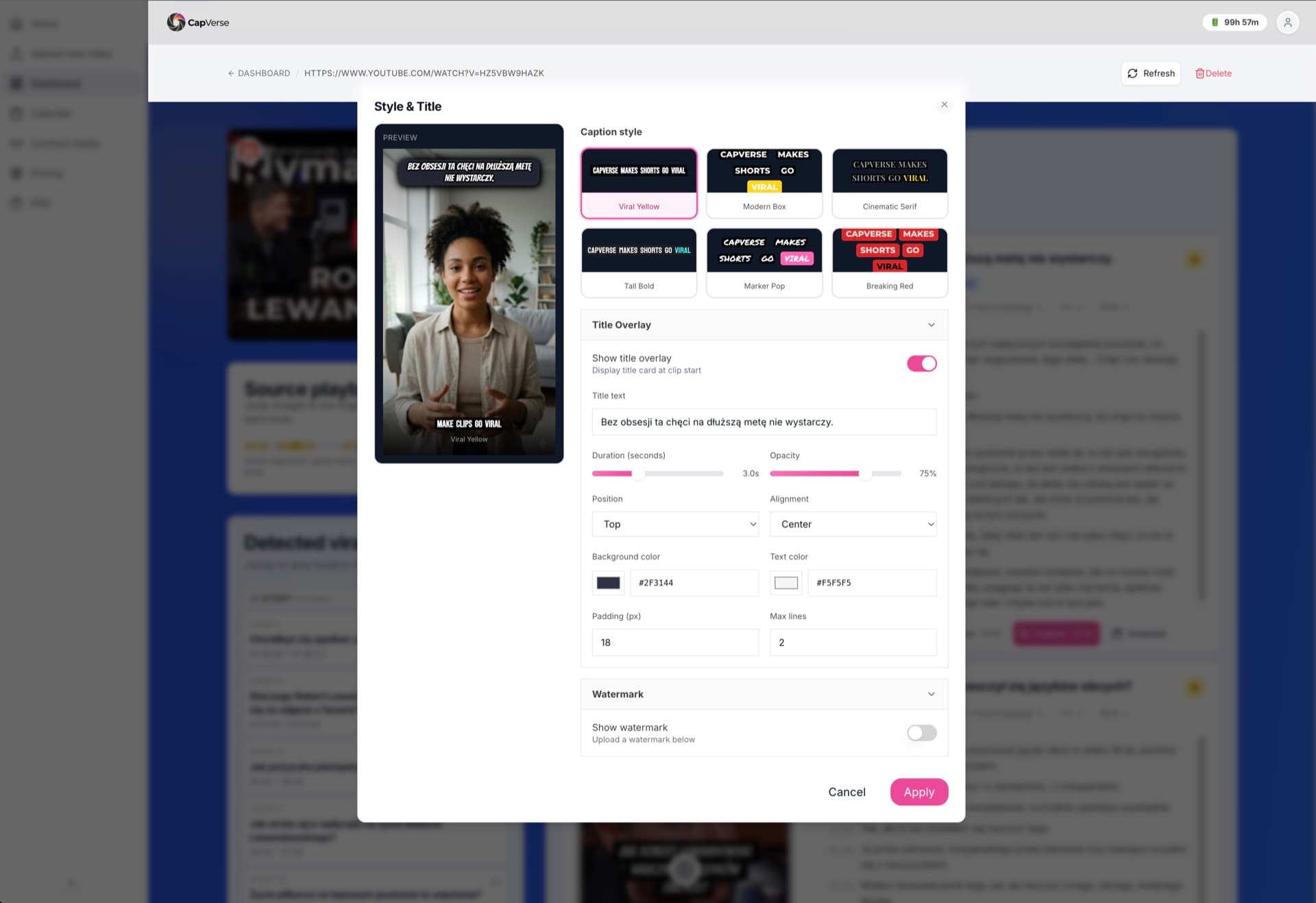
Caption Style Presets
Title Overlay Settings
Colors & Background
Set custom background and text colors to match your brand.
Duration & Opacity
Control how long the title shows and its transparency.
Position & Alignment
Place titles at top, center, or bottom with alignment options.
Watermark
Add your own logo watermark to branded clips.
Publishing
Share your clips with the world
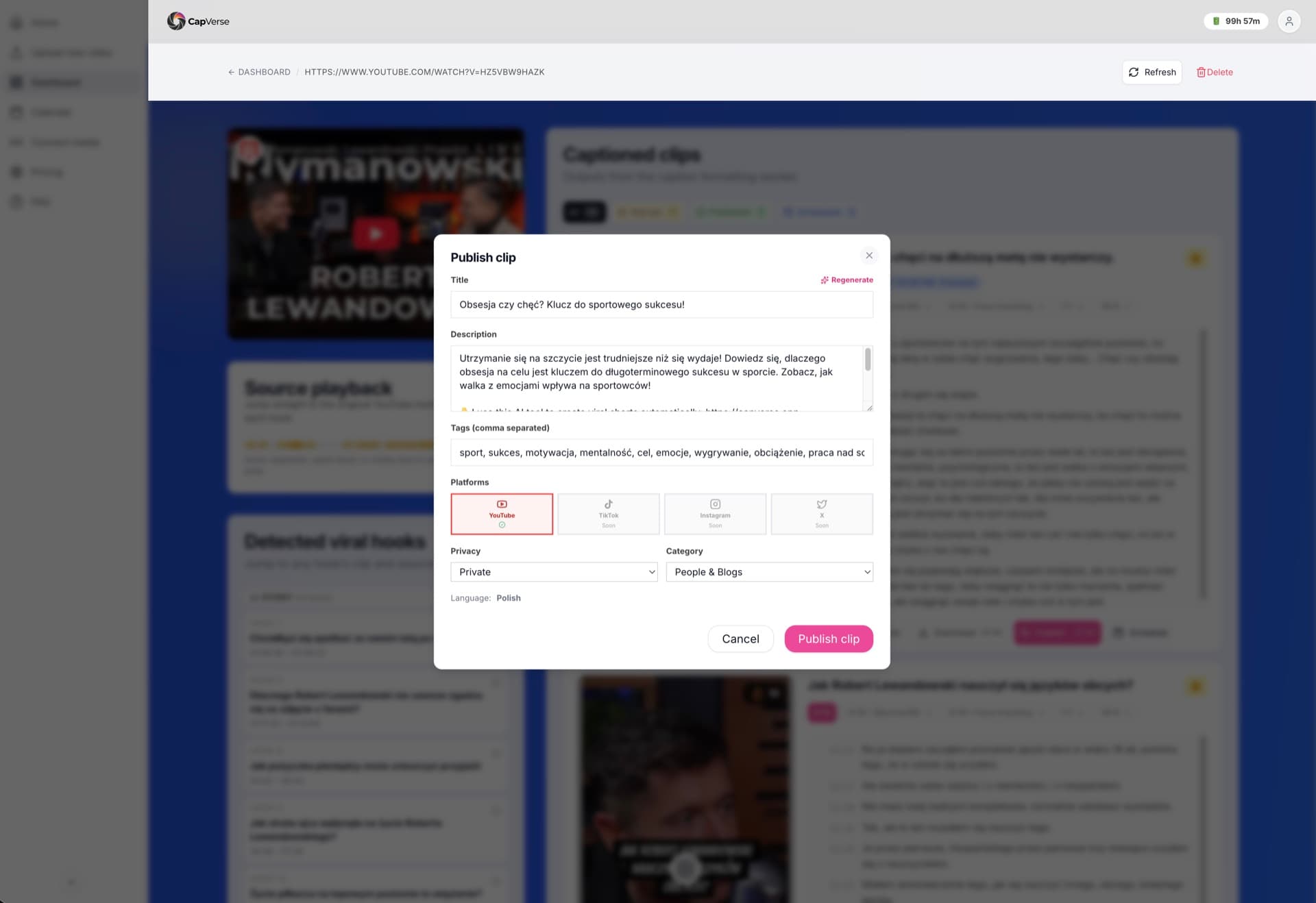
Publish Dialog Features
AI-Generated Title & Description
Get auto-generated titles and descriptions optimized for engagement. Click 'Regenerate' for alternatives.
Auto-Generated Tags
Relevant hashtags and keywords are generated automatically based on your content.
Multi-Platform Publishing
Select YouTube, TikTok, Instagram, or X (Twitter) to publish simultaneously.
Privacy & Category
Choose public/private visibility and select the appropriate content category.
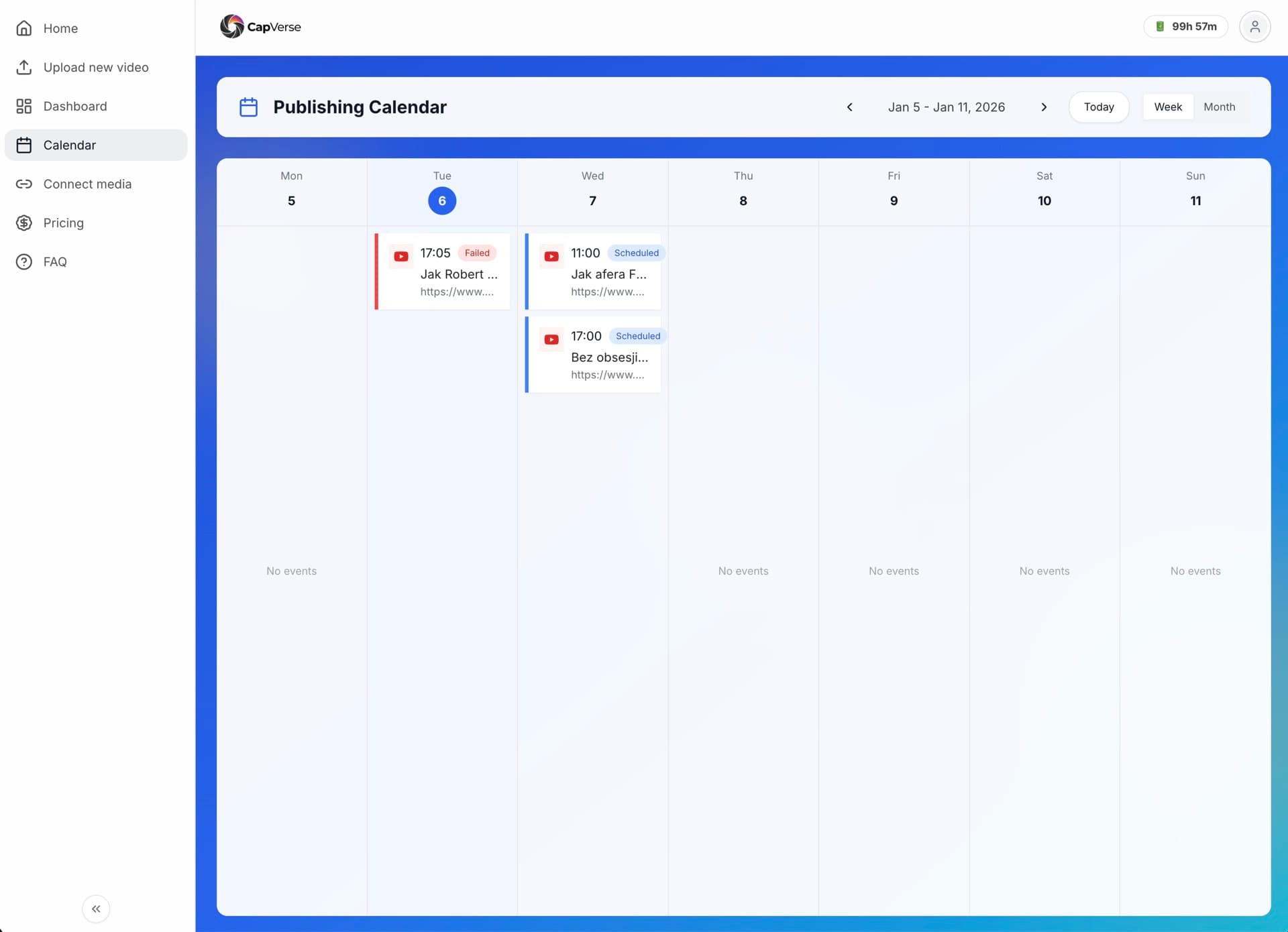
Publishing Calendar
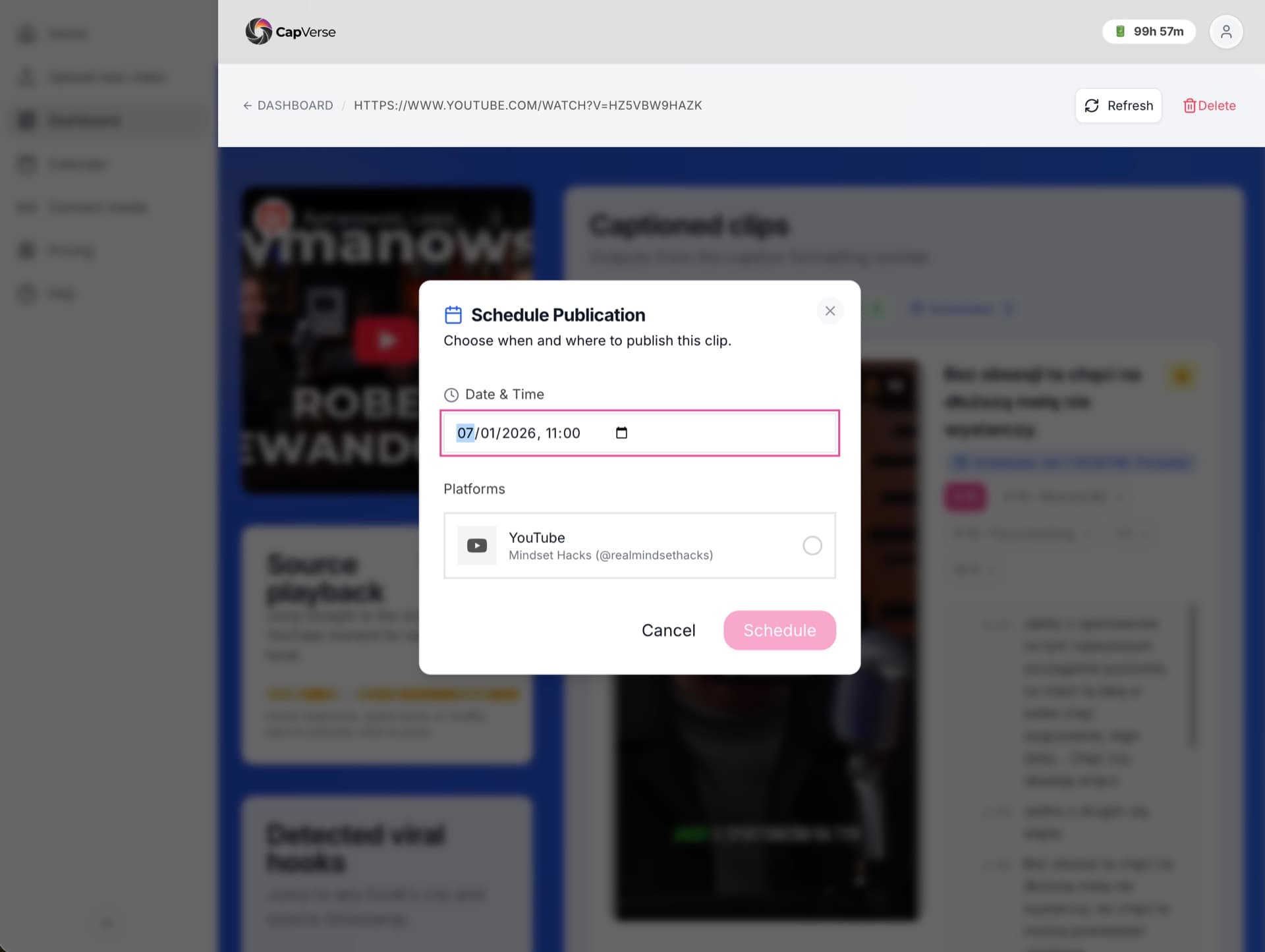
Plan and schedule your content
Calendar Views
Scheduled Posts
- See all scheduled publications at a glance
- Track status: Scheduled, Published, or Failed
- Click any event to view clip details
- Reschedule or cancel upcoming posts
Integrations
Connect your social media accounts
How It Works
Connect Account
Authorize CapVerse using secure OAuth. Your credentials stay safe.
Create Clips
Upload videos and let AI generate optimized short clips.
Publish
Post directly to connected platforms or schedule for later.
Supported Platforms